
Tags let you mark a person in your own words (for example "distributor" or "asked for samples").
- Open the person in the CRM.
- In the person’s details, click Add in the Tags row.
- Type the tag and press Enter. Esc cancels.
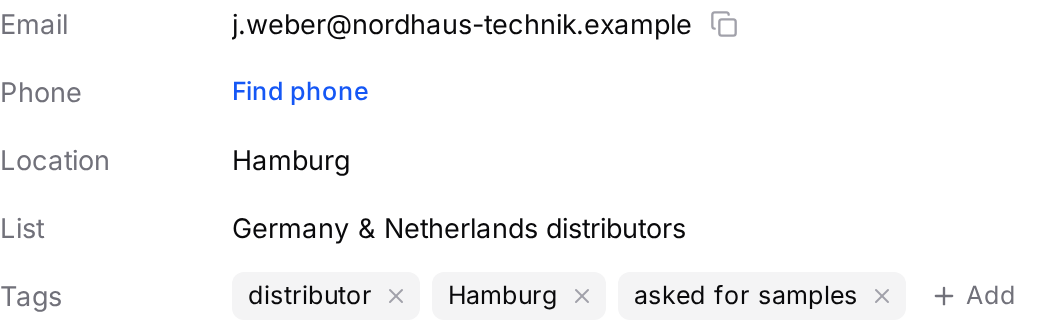
To remove a tag, click the × next to it.
Good to know:
- A tag can be up to 64 characters. You can't add the same tag twice, whatever the capitalisation.
- The tag is saved on the person, so if they are on another list too, the tags show there as well, and your team sees them.
- For now, tags only show in the person's detail; the search and filters in All leads don't look at tags. To find a group again, use stage or owner filters.