
- In the CRM, pick the list and open All leads.
- Tick the boxes next to people. The box in the header selects everyone on that page. Your selection is kept when you change pages.
- A bar with the number of selected people appears at the bottom of the screen.
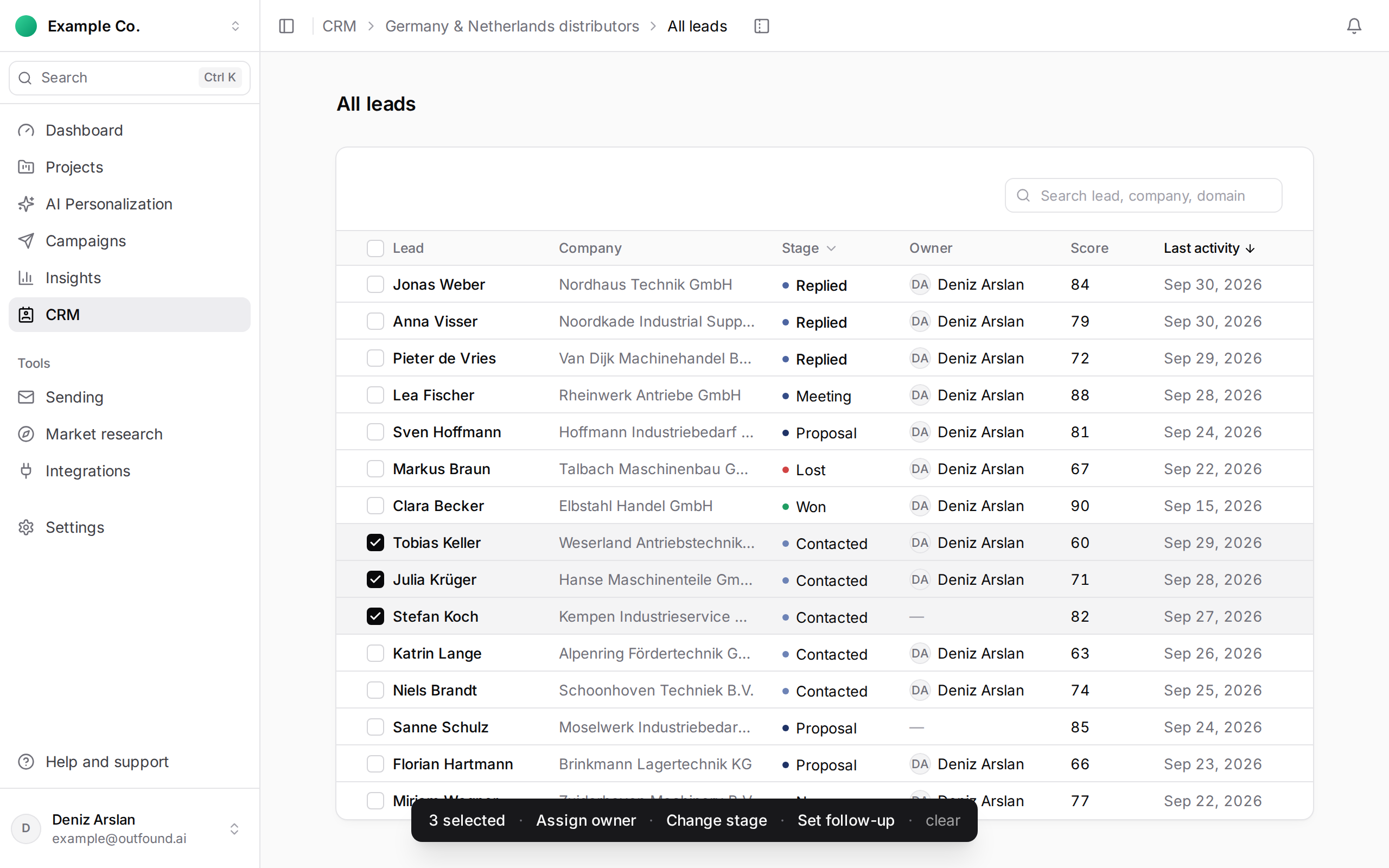
The actions in the bar:
- Assign owner: choose a teammate. To remove the owner from the selected people, click Clear assignment.
- Change stage: choose one of the list's stages and press Move … leads.
- Set follow-up: enter a Date & time and, if you like, a note, then press Set for … leads. In the same window, Clear reminders removes the selected people's existing reminders (including ones set one by one).
- clear: drops the selection.
One action can cover up to 500 people; for more, do it in batches. People removed from the list in the meantime are skipped, and the notification says so.
The same bar is also on a company's page, for the people at that company.