
You manage your lists from the list switcher at the top left of the CRM. Open it to search with Search list… and to see your lists grouped as Starred, Recent and the rest.
- Star: click the star to the left of a list name; the list stays at the top under Starred. Stars are stored in your browser only and don't change your teammates' switcher.
- Rename: choose Rename in the row's ⋯ menu, or double-click the list name. Type the new name and press Enter; Esc cancels. If another list already has that name, the name is not saved.
- Delete: choose ⋯ › Delete, or use Delete list at the bottom of the List settings page.
Before anything is deleted, a window shows the campaigns linked to the list and their status.
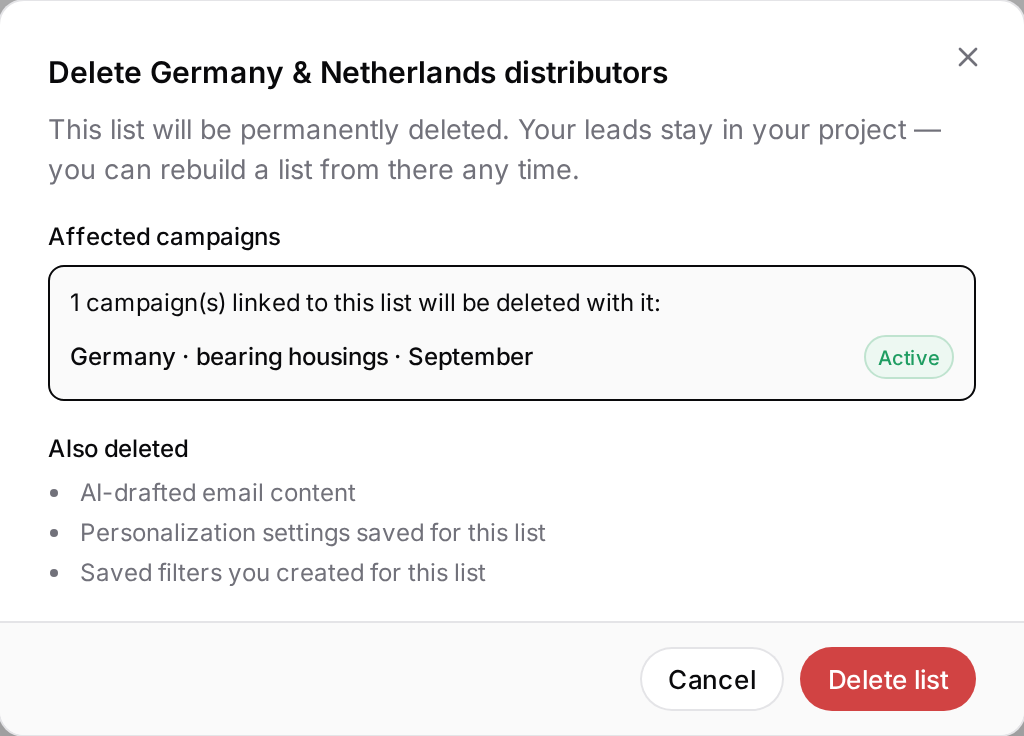
When you press Delete list, these are permanently deleted:
- the campaigns linked to the list (running ones included),
- the AI-written email drafts for this list,
- the personalisation settings saved for the list,
- the filters you saved on this list (saved views).
Leads are not deleted; they stay in your projects and you can save them to a list again at any time. Deleting can't be undone. The workspace's default list can't be renamed or deleted.