
If you belong to more than one workspace, you move between them from the menu.
- Click the workspace name at the top of the left menu.
- Pick the workspace you want from the list. The one you are in has a check mark.
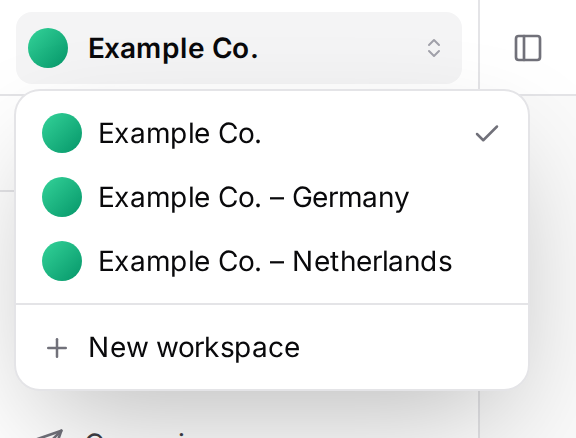
The chosen workspace opens on its Dashboard, and from then on projects, lists and campaigns come from that workspace. If you have unsaved work, you are asked before switching.
Creating a new workspace
If you are an Owner or Admin of the workspace, New workspace shows at the bottom of the list.
- Click New workspace.
- Enter a Workspace Name and, if you like, a Description (optional), then press Create.
The new workspace starts empty, with you as its Owner. Invite your teammates to it separately. The subscription and its allowances belong to the organization, so all its workspaces share them.
A one-person account cannot create a new workspace; the option works once a second person has joined your organization.