
Every use of an allowance is listed in the Usage view on Settings › Activity. The Usage details link on Settings › Plan opens it directly.
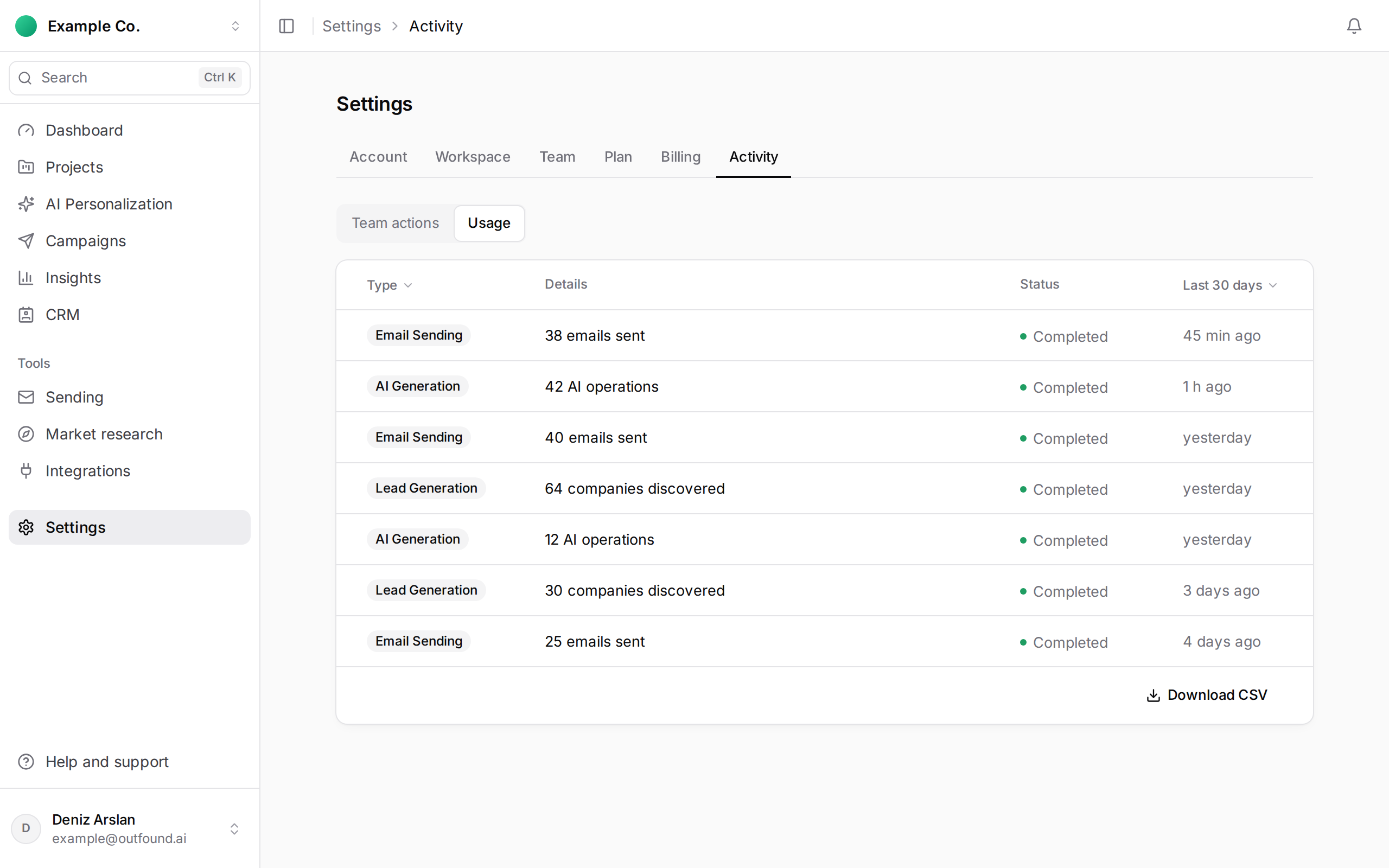
Each row is one use: its type (Lead Generation, AI Generation, Email Sending), how much was used (for example "64 companies discovered"), its status and when. Click a row to see its details.
The filters sit in the column headers:
- Type: show one kind of allowance only,
- the range on the right: Today, Last 7 days, Last 30 days or Last 90 days.
Download CSV under the list downloads everything in the chosen type and range as one file. The file uses the app's language and your time zone, and the separator Excel expects for that language, so it opens already split into columns.
Allowances belong to the organization, so the list shows usage from all the workspaces in your organization. To see how much is left this period, go to Settings › Plan.