
With two-factor authentication on, sign-in asks for a 6-digit code from the authenticator app on your phone after your password (or after signing in with Google or Microsoft).
To turn it on:
- On Settings › Account, in the Account Security section, click Turn on in the Two-factor authentication row.
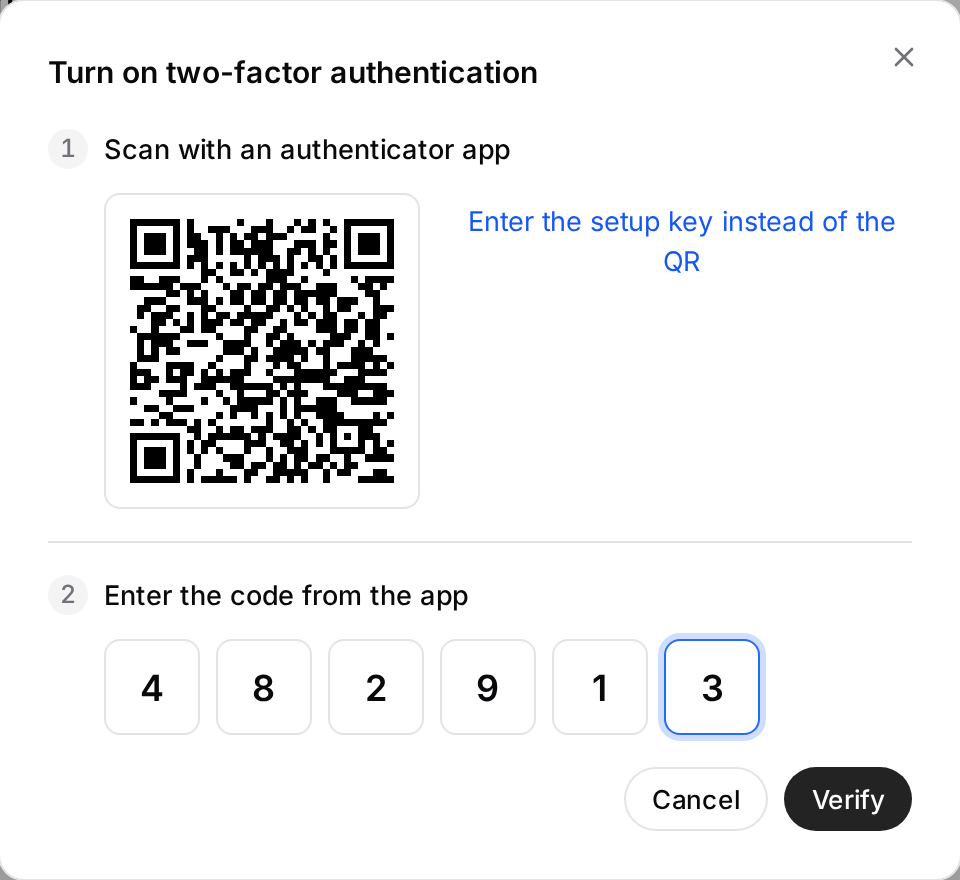
- At Scan with an authenticator app, scan the QR code with your app. If you can't scan it, use Enter the setup key instead of the QR and type the key into the app.
- At Enter the code from the app, type the 6-digit code from the app and click Verify.
- In Save your backup codes, save the codes somewhere safe with Download or Copy, tick I saved the codes somewhere safe and click Done.
The backup codes are shown only in this dialog, once, and each code works once. If you can't reach your phone, you sign in with one of them. The only way to get new backup codes is to turn 2FA off and on again.
While 2FA is on, the row shows On. To turn it off, click Turn off in the same row, then Turn off 2FA.
For your security, you may be asked to confirm your identity again before these changes.